OpenBusiness by Tradebook
Product
Cleaning and facility management

Staffing contracts by site, special services, supplies at cost, AIU and per-worker annex.

SCPEAB
Private security

Staff per post with surcharges, uniforms and PPE with signed records, training with expiry dates.

SCPEFI
Temporary staffing and outsourcing

Workers on assignment, pre-invoice per worker, electronic payroll and PILA costed to the client.

PESCFI
Distribution and consumer goods

Routes and collections with Trade360, inventory movement records per warehouse, filling and packing, catch weight, batch labels.

COABSC
Retail, stores and restaurants

Point of sale with electronic POS document, online store, marketplaces and inventory.

COABFI
Importers and trading companies

Import and export checklists, import declaration costs included in inventory and foreign currency operations.

ABFICO
Manufacturing and industry

Recipes and bills of materials, production orders, actual cost, make-to-order, purchasing and batches.

ABPEFI
Technical service and maintenance

Field work orders with forms and evidence, support with agreed response times and spare parts tracked in inventory.

SCABCO
Government contractors and suppliers

Contracts with Colombia’s SECOP II procurement platform, adjustments based on inflation, minimum wage or tax units, agreed service times, insurance policies and document history.

SCFIPE
Agribusiness

Harvest or livestock intake with weighing, quality and settlement; batches and traceability; field staff.

SCPEAB
Food and beverage

Batch recipes, signed critical control points, traceability to origin, catch weight and harvest settlement.

ABFICO
Chemicals, cleaning products and cosmetics

Percentage formulas with versions, pH and viscosity as critical points, health notification and data sheets.

ABFICO
Recommended suites:COSalesSCServices and ContractsABSupply and ProductionFIFinancePEPeople
Skip to content
Trade360 · Route optimization

Plan tomorrow’s routes in minutes. Consider delivery zones, vehicle loads, customer time windows, and other factors.

Load the day’s orders and choose the vehicles. The planner builds routes that fit each vehicle’s capacity, customer delivery windows and assigned territory.

For logistics managers, dispatch coordinators and field teams.

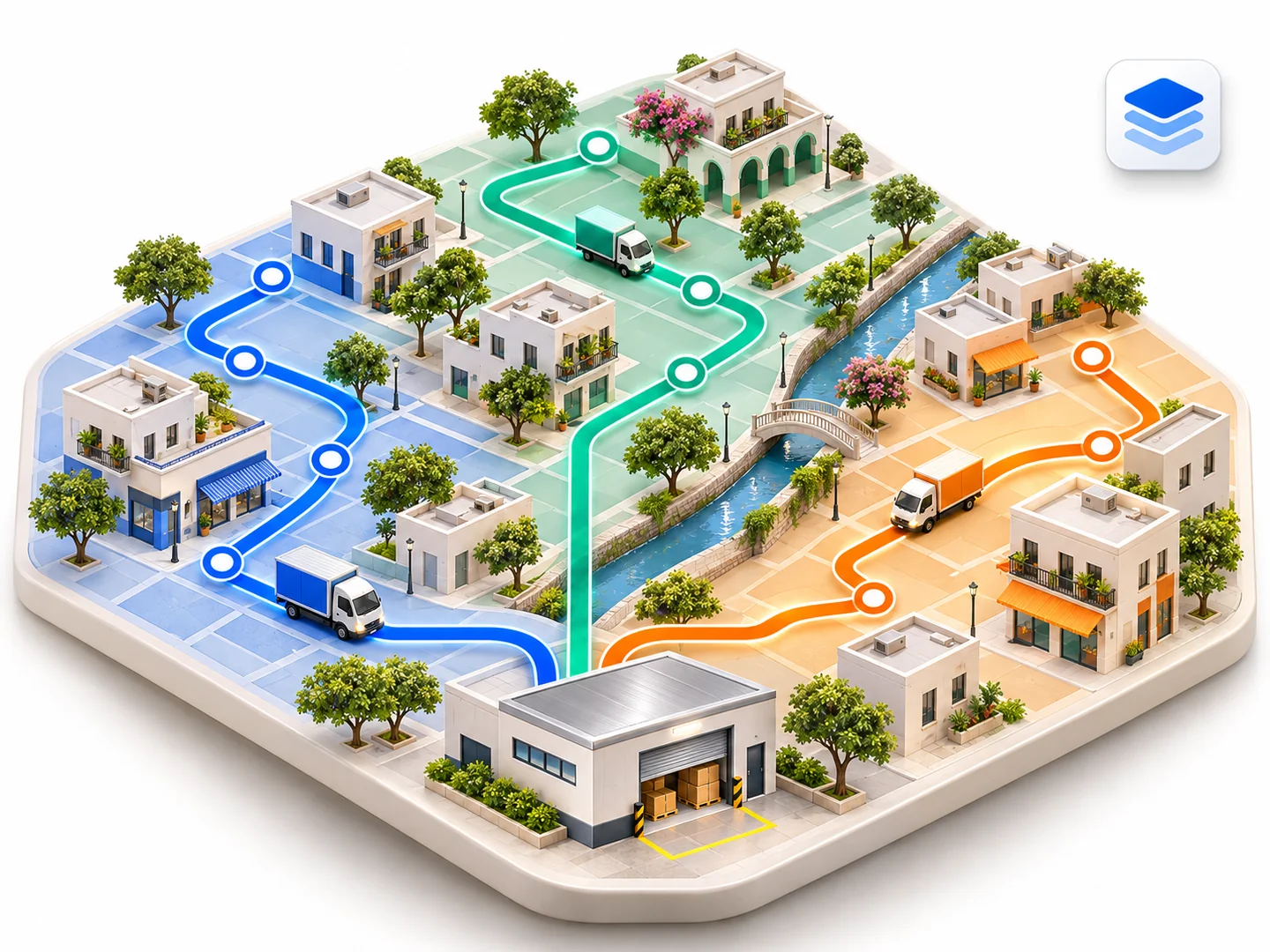
Map of three delivery routes leaving one depot to serve different parts of a city.
How it works

From an order list to the driver’s schedule in four steps.

Work in a single browser window with three tabs: Tasks, Vehicles and Results.

  1. Load tasks

    Each delivery or visit is a task. Import tasks from Excel, an existing route or a schedule, or receive them from your system.

  2. Choose vehicles

    Group vehicles by distribution center. Each has its own capacity, working hours and optional zones.

  3. Optimize routes

    Assign tasks to vehicles and sequence each route’s stops in one step. Follow the calculation as it runs.

  4. Publish the plan

    Review the plan, then create visit schedules and dispatch documents. Each driver receives their schedule on their phone.

Before optimization

Prepare tasks and vehicles in one place.

Check and correct your inputs before calculating routes.

Tasks

  • Import locations, up to five capacity measures, duration, activity type, order and invoice numbers, and up to twenty custom fields from Excel.
  • Reorder existing work using recurring routes by person and weekday, or scheduled visits by person and date.
  • Locate tasks on the map from their street address, individually or in batches.
  • Check whether each point can be reached by road from the distribution center.
  • Filter tasks on the map and edit capacity, duration or activity type for multiple tasks together.
  • A notice flags tasks that were previously planned.
  • Compare the selected task count and load with fleet totals.

Vehicles

  • Group vehicles by distribution center or give individual vehicles their own starting points.
  • Record the plate, type, make, operator, up to five capacity measures, working hours and maximum route duration for each vehicle.
  • Include owned and third-party vehicles in one plan.
  • Each vehicle has a regular driver. Reassign the driver during review if needed.
  • Edit several vehicles at once or search by plate.
  • Set average speeds for teams traveling on foot or by motorcycle.
The optimizer

Build routes the team can complete.

A short route can still overload a truck or miss a delivery window. The planner considers these constraints when distributing work.

Vehicle capacity

Use up to five measures together, such as weight, volume and boxes. The optimizer keeps assignments within each limit.

Customer receiving hours

Stops are sequenced around each customer’s delivery window.

Driver shifts

Set departure, return and maximum route duration for each vehicle.

Time at each stop

Unloading twenty boxes takes longer than handing over an envelope. Set the duration per task.

Starting point

Start routes at the group’s distribution center. Choose whether they return there or finish at the final delivery.

Road distances

Use turn-by-turn road distances or straight-line distances for a quicker calculation.

Vehicle territories

Reserve tasks within a territory for the vehicles assigned to it.

Orders for the same customer

The optimizer tries to keep tasks at the same point of sale on one vehicle.

Unassigned orders stay visible

Unassigned tasks appear under “No vehicle” with a reason, ready for your decision.

On foot, by motorcycle or truck

Set the average travel speed for someone on foot or a vehicle on the road.

Group nearby tasks

Optionally group nearby tasks by vehicle before sequencing the stops. Repeat the assignment until the result works for your team.

Calculation time

Choose how long to search for a solution, from ten seconds to three minutes.

Zones by vehicle

Give each driver a territory.

Draw territories on the map and assign vehicles. The optimizer allocates tasks within each territory to the vehicles that cover it.

  • Multiple vehicles can share a territory. Load and distance determine how its tasks are split.
  • Vehicles without a zone pick up tasks outside the defined territories.
  • A warning before optimization flags territories where demand exceeds vehicle capacity.
  • Inspect a vehicle to see its task count and total load against its capacity.
  • Use the group zones table to copy, swap or remove assignments across vehicles.
  • Suggest territories for each vehicle using the day’s tasks.

Keep territories stable so customers see familiar drivers and dispatchers spend less time reassigning stops.

A van’s territory with five stops and a load of 750 kg out of 1,000 kg.
Polygon manager

Manage all zones on one map.

Create, organize and maintain the company’s territories in one place.

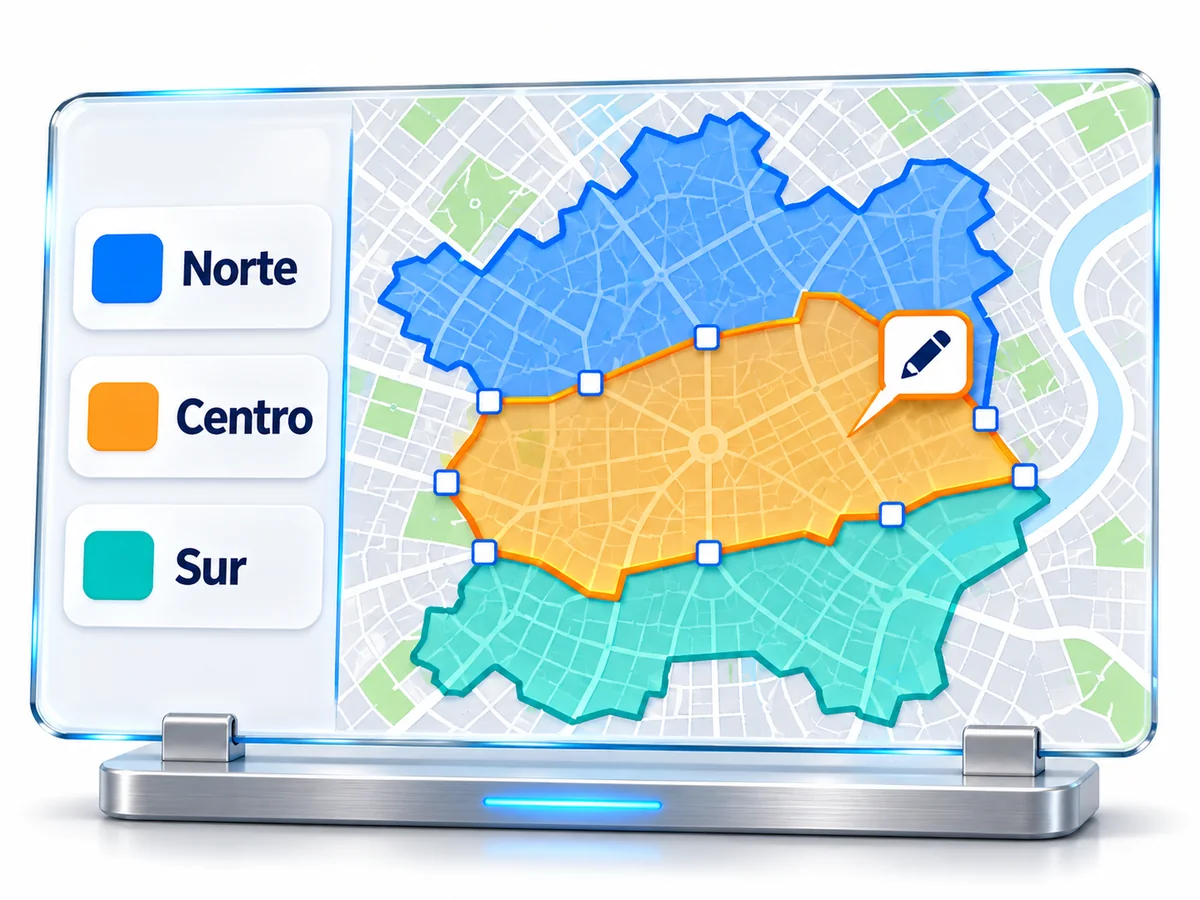
  • Draw polygons, rectangles or circles and drag their points to reshape them.
  • Import several zones at once from KML, KMZ or GeoJSON and review them before saving.
  • Fill gaps between adjacent territories with one click.
  • See overlapping areas highlighted in red.
  • Check which customers fall within each zone and download the list.
  • Group territories by city or region and export them for use in another system.
A list of three territories beside their colored polygons on a street map.
Plan results

Review the whole plan before the first truck leaves.

  • For each vehicle, see the task count, departure and return times, kilometers and utilization for each capacity measure.
  • Inspect stops in order, with arrival and departure times at each customer.
  • Show each route in a different color on the road map with territories behind it. Toggle vehicles to compare them.
  • Get a warning when a vehicle’s load exceeds its capacity.
  • View just the routes, just the map, or both together.
  • Find saved plans by date and reload them.
Three sample routes show duration, distance and vehicle utilization of 75%, 90% and 60%.
Manual adjustments

The system proposes. You decide.

Dispatchers know details a calculation can miss. Edit the result and the planner respects your manual assignments.

Move tasks

Drag a task between vehicles or select several on the map and move them together.

Reorder a route

After a change, recalculate the stop order on that route alone.

Swap vehicles

If a truck is unavailable, move its entire route to another vehicle in one step.

Assign remaining work

Manually assign tasks in “No vehicle” to a driver, even when they fall outside the time window.

Remove tasks from the plan

Remove tasks using the table or map while keeping the underlying task records.

Change the driver

Each route starts with the vehicle’s usual driver. Select another team member before publishing.

Publishing

Turn the plan into field work without retyping.

When the plan is ready, turn it into schedules for the team and documents for dispatch.

Visit schedules

Create visits for each driver on your chosen date. Keep existing visits or replace those that have yet to start.

Dispatch documents

Generate a dispatch document per vehicle with the invoices for its tasks. If a driver is assigned, the visits are created too.

Freight cost

Enter a per-unit rate by city to calculate the trip cost for each vehicle, including invoices, quantity and total.

Prefilled field forms

Open driver forms with task details already filled in.

Review before publishing

Routes need calculated times before publishing. See which visits could not be created and why.

Export

Export to Excel, JSON or XML, or save the plan to review and publish later.

On the road

The plan reaches the driver’s phone.

Publish the plan and each driver receives their schedule in the Trade360 app.

  • Drivers see their stops in order and mark each delivery complete.
  • Capture forms, photos and the customer’s signature at the stop.
  • The app works offline and sends updates when connectivity returns.
  • The office follows progress on the map.
A driver checks the next scheduled stop on a phone beside the parked van.

Coverage and training

Available road maps

Colombia · Costa Rica · Mexico · Panama · Peru · Venezuela

Training included

On-screen videos walk through tasks, vehicles, constraints, manual assignments and creating the visit schedule.

Frequently asked questions

Before you plan your first route.

Do I need to install anything?

Planning runs in your browser. Drivers use the Trade360 app on their phones.

Where do tasks come from?

Import Excel files, use existing routes or appointments, or receive tasks through an integration with your system.

Are zones required?

No. Without zones the planner uses load, schedules and distance. Assign zones only to selected vehicles or ignore them for a particular plan.

Can I bring in existing territories?

Yes. Export territories from Google Earth, Google My Maps or another mapping tool as KML, KMZ or GeoJSON and import them.

What happens to orders that do not fit?

They appear under “No vehicle” with a reason. Assign them manually, add a vehicle or defer them to another day.

Can we plan routes for teams without vehicles?

Yes. Adjust the average speed for walking or motorcycles and sequence their routes or appointments.

Can I plan for owned and third-party vehicles together?

Yes. Record each vehicle’s operator and include them all in the same plan.

What if an address has no map location?

The planner looks up the address and verifies that the point is reachable before optimization.